
 Plugin Management
Zadig provides plugin management functionality that allows users to customize and extend platform capabilities based on business requirements, enhancing user experience.
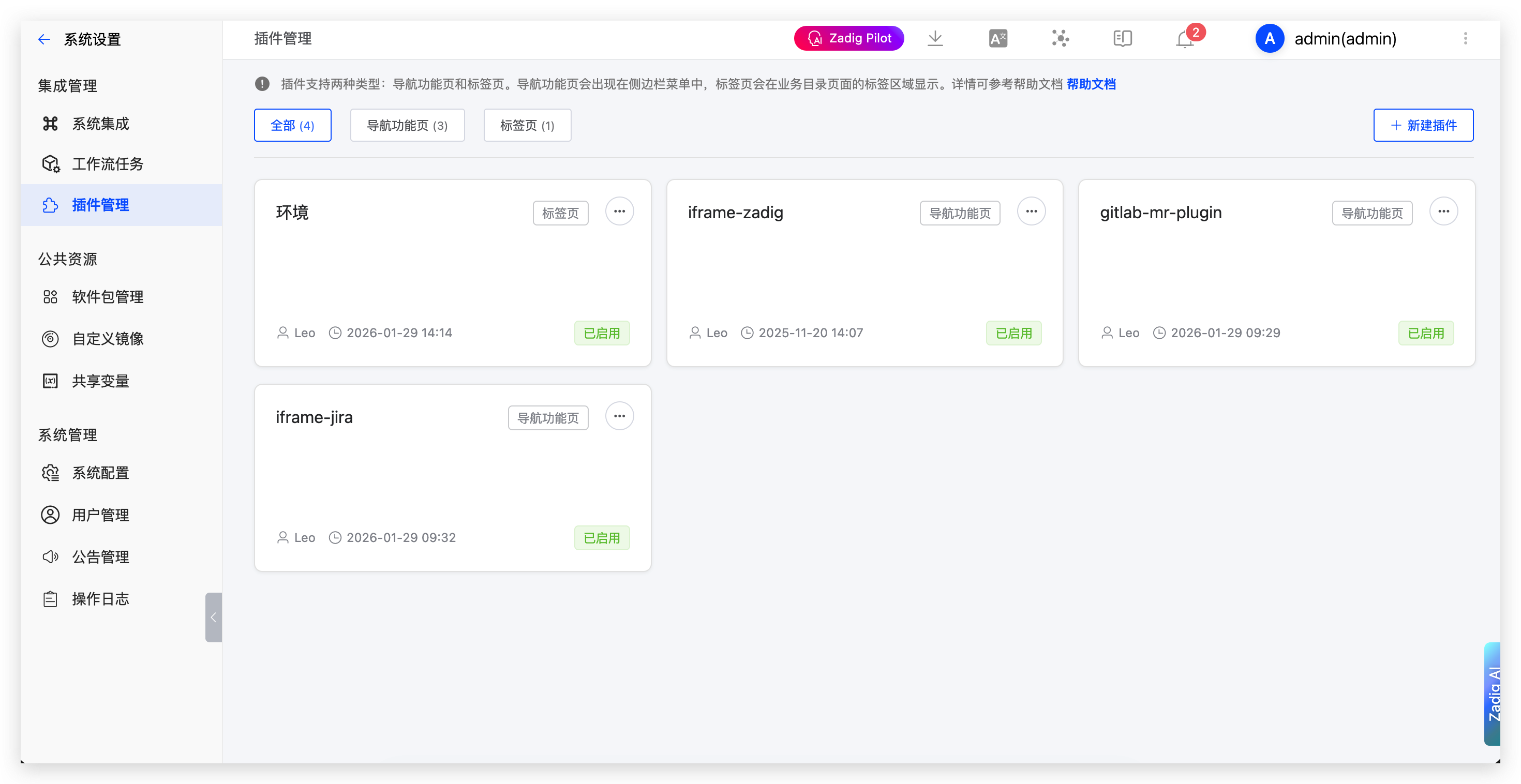
# Feature Overview
Plugin management provides flexible extension mechanisms that enable users to:
- Function Extension: Extend system functionality through plugins to meet personalized needs
- Interface Customization: Customize navigation menus and business pages to improve user experience
- Integration Enhancement: Integrate third-party tools and services for richer functionality
- Flexible Configuration: Support enabling and disabling plugins
# Plugin Types
Plugins support two main types, each with different display locations and purposes:
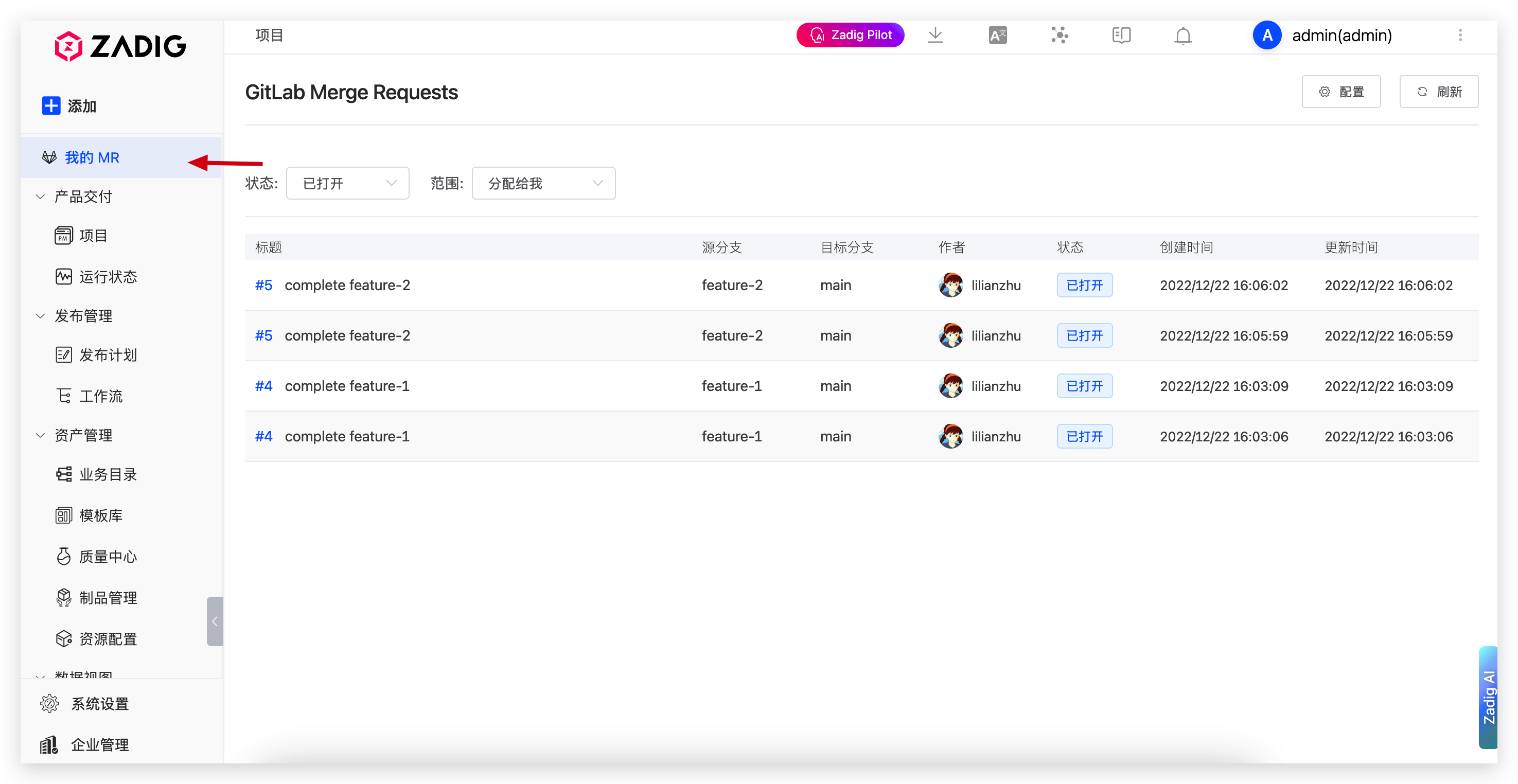
# Navigation Function Page
Navigation function page plugins appear in the system sidebar menu as independent navigation items, providing independent functional pages.
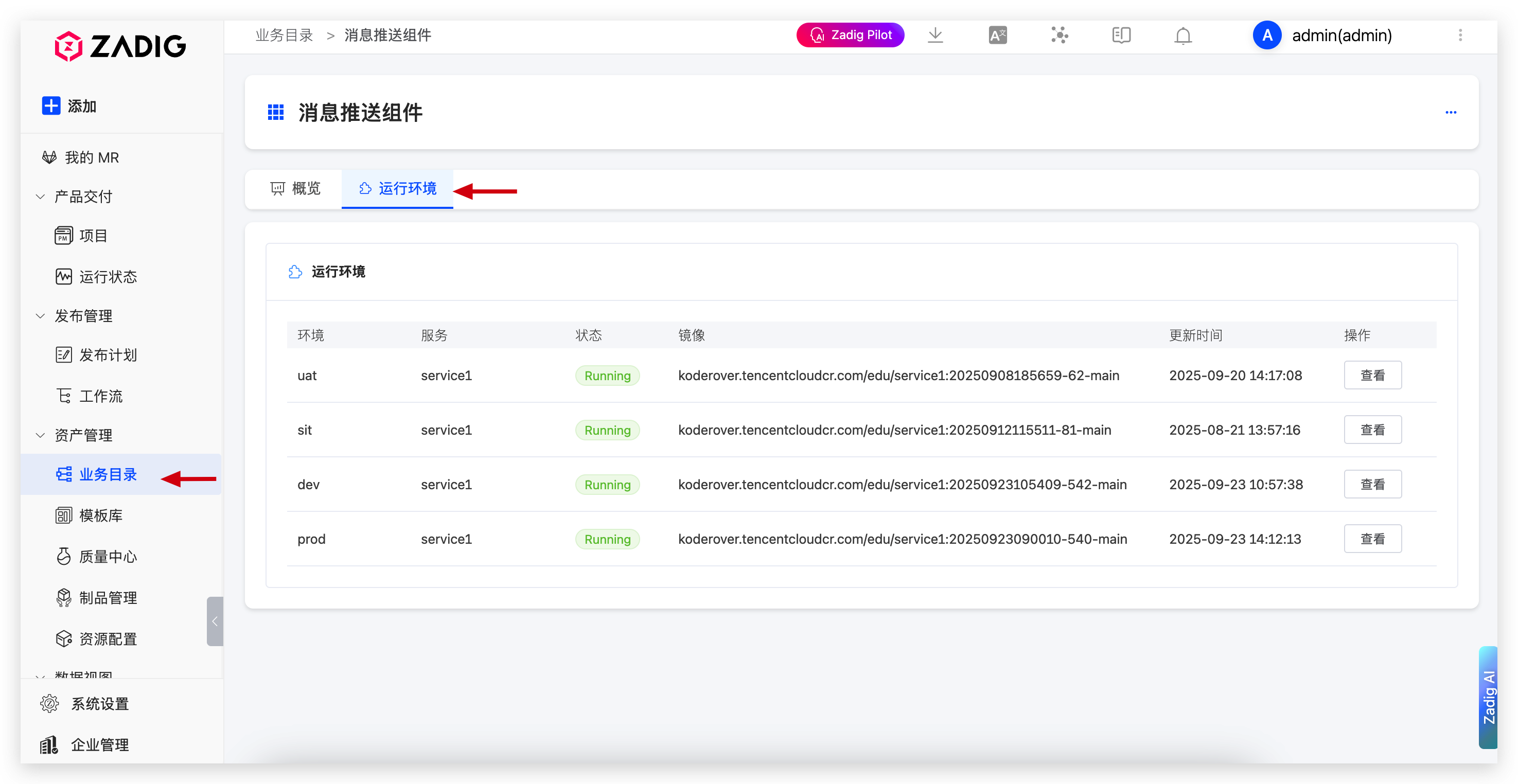
# Tab Page
Tab page plugins are displayed in the tab area of business directories, adding additional tab content to existing business pages.
# Plugin Management
# View Plugin List
In System Settings → Plugin Management, you can view all installed plugins, including:
- Plugin name and description
- Plugin type (Navigation Function Page/Tab Page)
- Enabled status
- Action buttons
# Install New Plugin
- Click the "New Plugin" button
- Fill in plugin information:
- Plugin Name: Display name of the plugin
- Plugin Type: Select Navigation Function Page or Tab Page
- Route Path: Access path of the plugin (only required for Navigation Function Page)
- Plugin Description: Brief description of plugin functionality
- Plugin Status: Enable or Disable
- Upload the plugin file (plugin.js)
- Click "Create" to complete installation
# Manage Plugin Status
- Enable Plugin: Plugin is visible and available in the system
- Disable Plugin: Plugin is hidden in the system, configuration information is retained
- Delete Plugin: Completely remove the plugin and its configuration

