
 Helm Chart Template
Background
 The Helm Chart template is suitable for projects deployed with Helm Chart, allowing users to deploy K8s applications more flexibly and efficiently.
# New Template
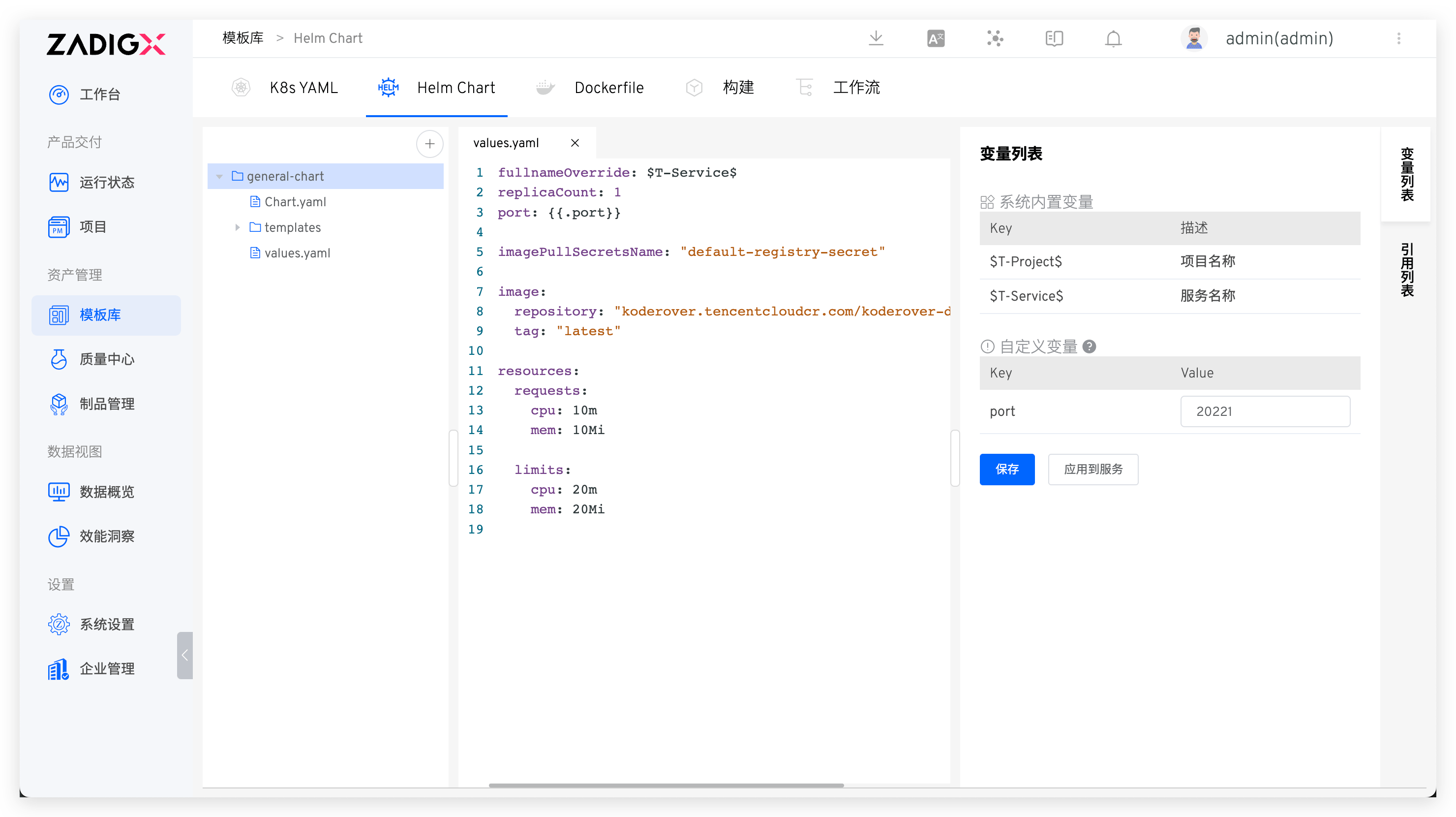
Visit Assets → Templates → Helm Chart in sequence, click the + button, enter the Helm Chart template name in the pop-up modal box, and import the template content from the code repository.
Tips
Refer to the code repository for supported code repository: Code Source Information, and refer to the code repository integration: code repository integration
# Variable List
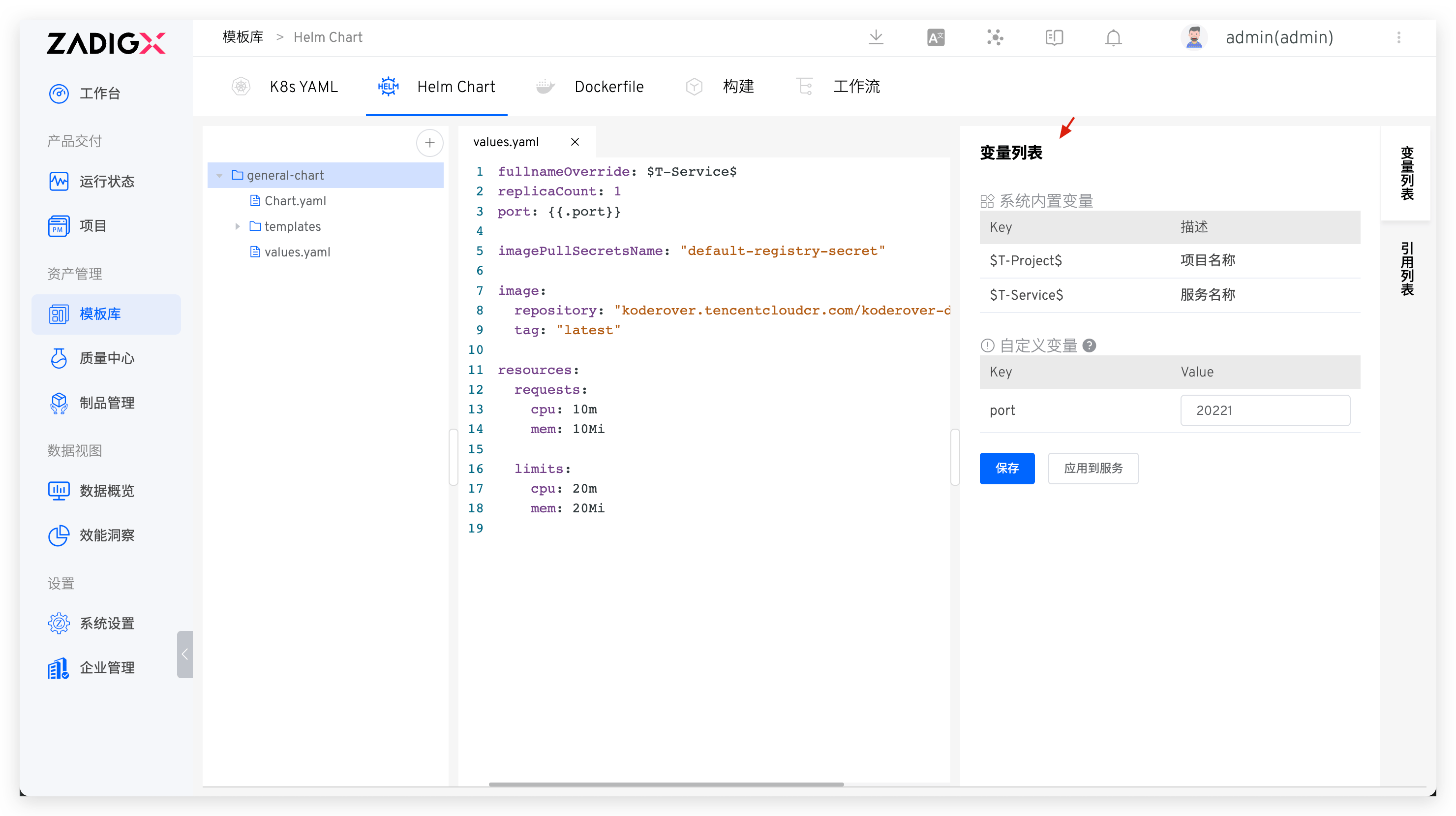
After the template content is saved successfully, the system will automatically parse the variables used in the values.yaml of the template.
System Built-in Variables: Includes$T-Project$and$T-Service$, which can be used directly in the Helm Chart template. After creating a new service based on the template in the project, these will be automatically replaced with the corresponding project name and service name.Custom Variables: Define and use in the template using the format{{.key}}. You can assign a default value. When creating a new service based on the template in the project, you can modify the value of the custom variable to redefine the service.
# Apply to Service
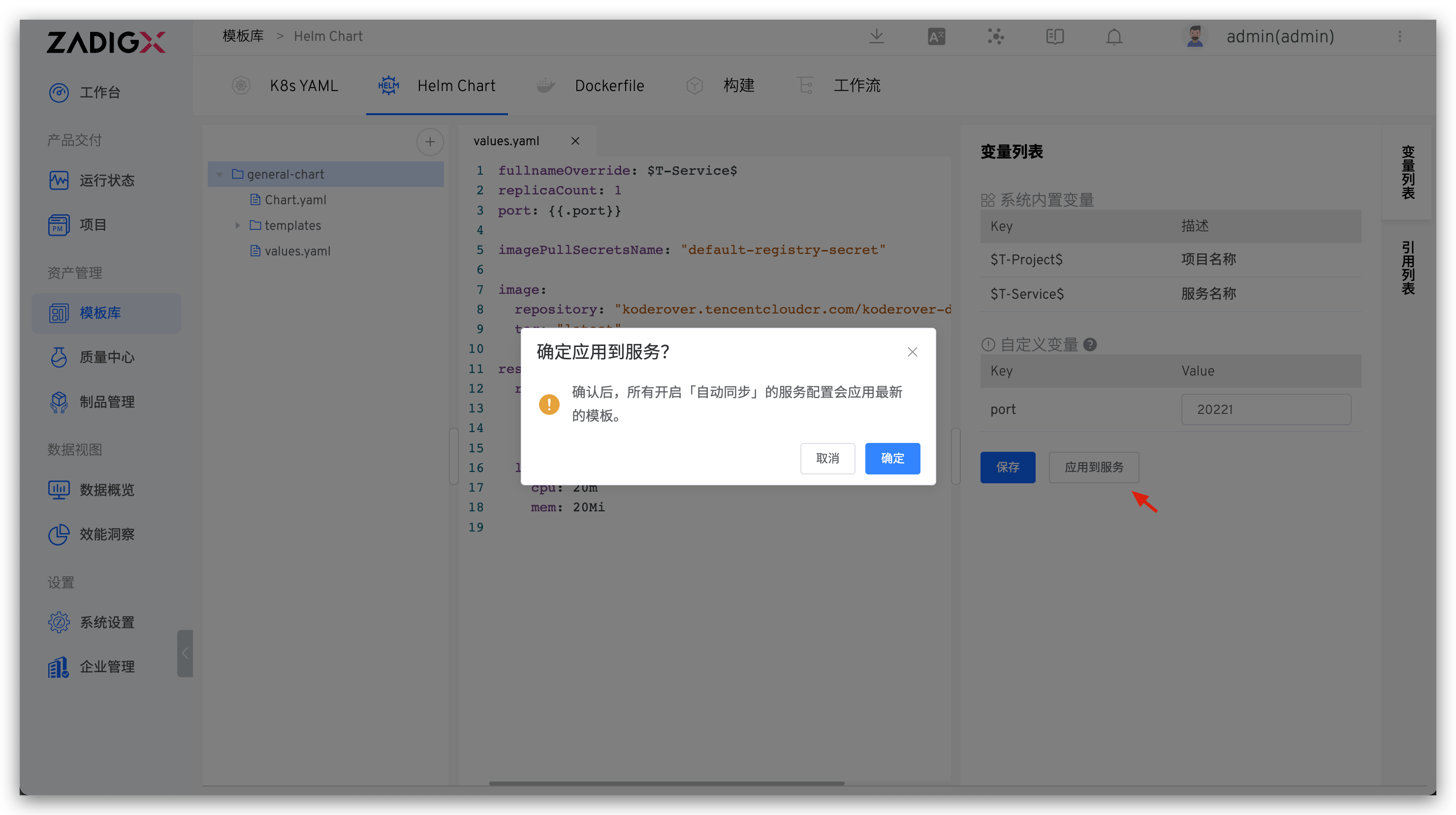
Click Apply to Service to update all service configurations with Automatic Synchronization enabled using the latest template content.
Turn on the
Automatic Synchronizationoperation for the service. Refer to the use template to create a new service. :::
# Using Templates
When creating a new service in the K8s Helm Chart project, you can choose to import services from templates, and refer to using templates to create a new service.
# Helm Chart Template Example
A Helm Chart template is also a complete Helm Chart in terms of structure, as shown below:
path/to/your/helm-chart
├── Chart.yaml # The Chart.yaml file is required for the chart
├── templates # The template directory in the chart, a series of Kubernetes YAML files
│   ├── deployment.yaml
│   ├── service.yaml
│   └── .....
└── values.yaml # The default configuration values for the chart
2
3
4
5
6
7
You can also visit the general-chart(opens new window) template in the multi-service-demo case to learn more.

